

OpenAI states that ChatGPT automatically includes utm_source=chatgpt.com in referral URLs from ChatGPT search results, which makes GA4 tracking possible.
The problem is that many teams still cannot see that traffic cleanly because GA4 can label parts of it as (not set) or group it as Unassigned.
This guide shows you:
- the fastest way to find ChatGPT sessions in GA4,
- why you might see (not set) or Unassigned,
- how to build a saved ChatGPT traffic report,
- and how to create a custom channel group so the traffic does not disappear inside reporting noise.
If you want to use ChatGPT discovery as part of a lead system, not a vanity metric:
Search + AI Visibility: https://seoinformatica.com/search-ai-visibility/
Start with a Free Clarity Call: https://seoinformatica.com/start/
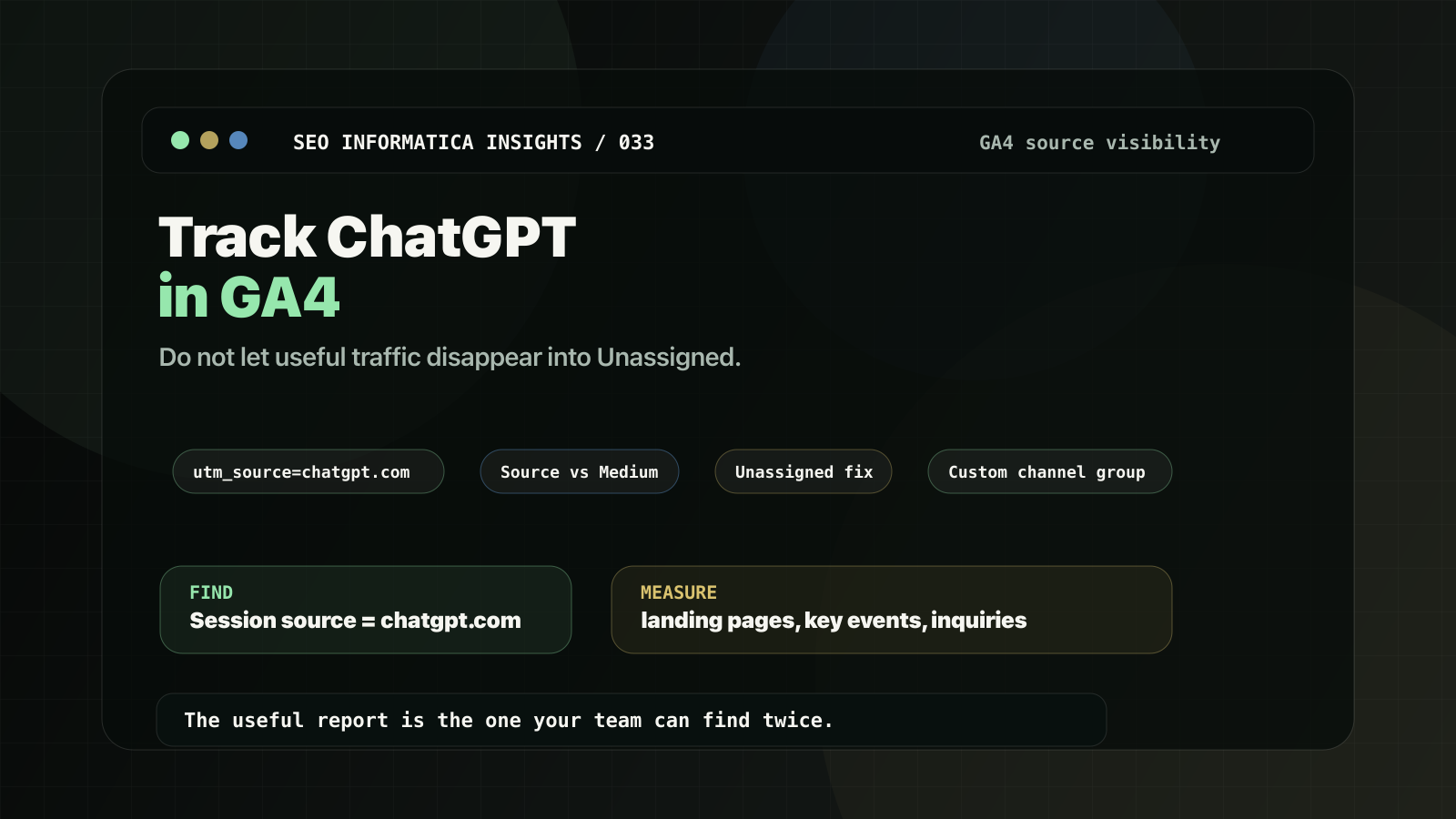
Why ChatGPT traffic can look broken in GA4
Here is the core nuance:
Google's GA4 documentation says that when a URL has any UTM parameter, Analytics can derive cross-channel traffic-source values from UTMs only. Google also warns that missing UTM parameters can result in (not set) values in reports.
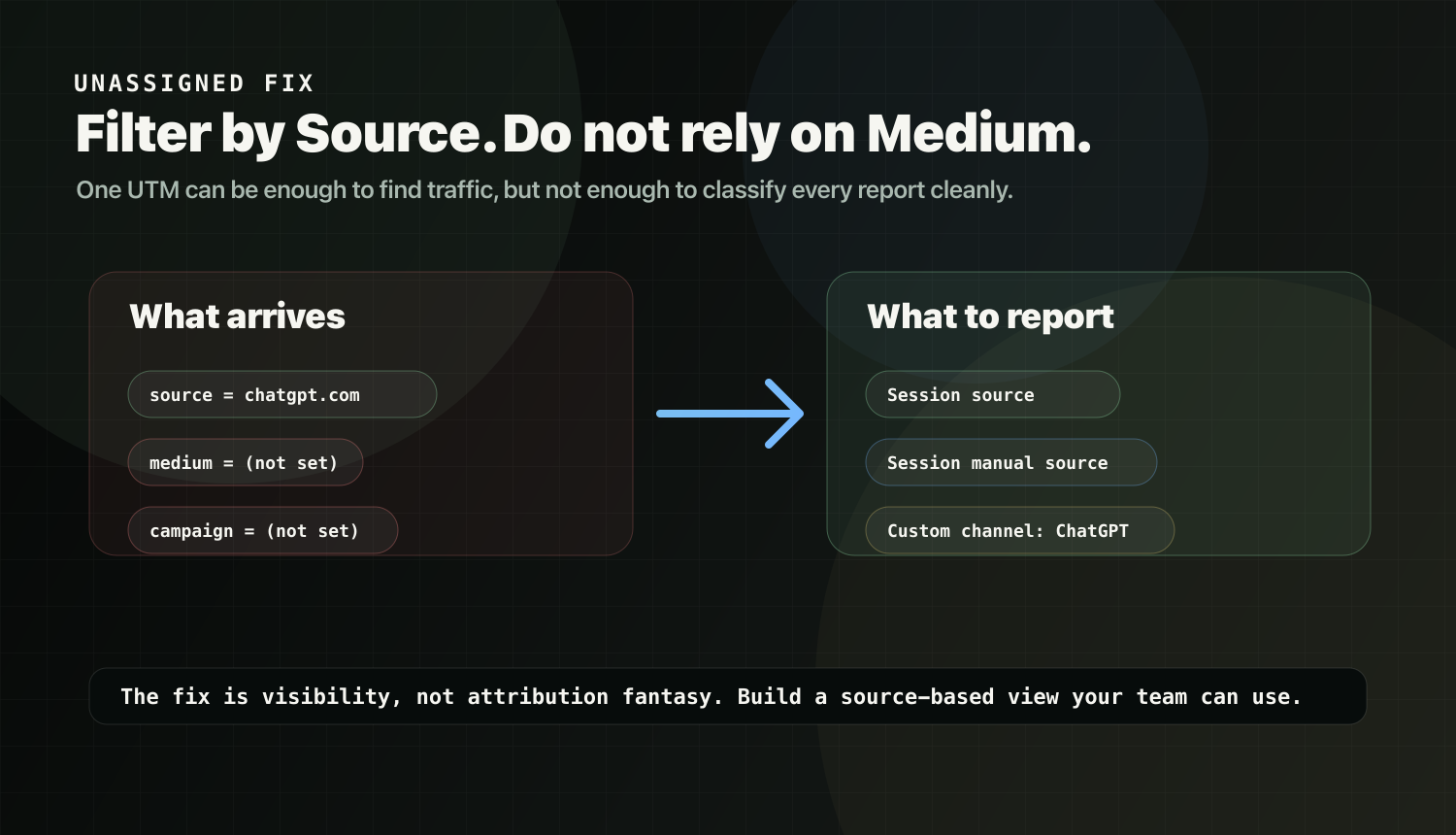
ChatGPT referral URLs include utm_source=chatgpt.com, but they may not include utm_medium or utm_campaign.
That means you can see combinations like:
- Source =
chatgpt.com - Medium =
(not set) - Session source / medium =
chatgpt.com / (not set) - Default channel group = Unassigned, if GA4 has no matching channel rule for the event data.
This is a reporting problem. It is not proof that ChatGPT did not send traffic.
Step 1: Quick check in Traffic acquisition
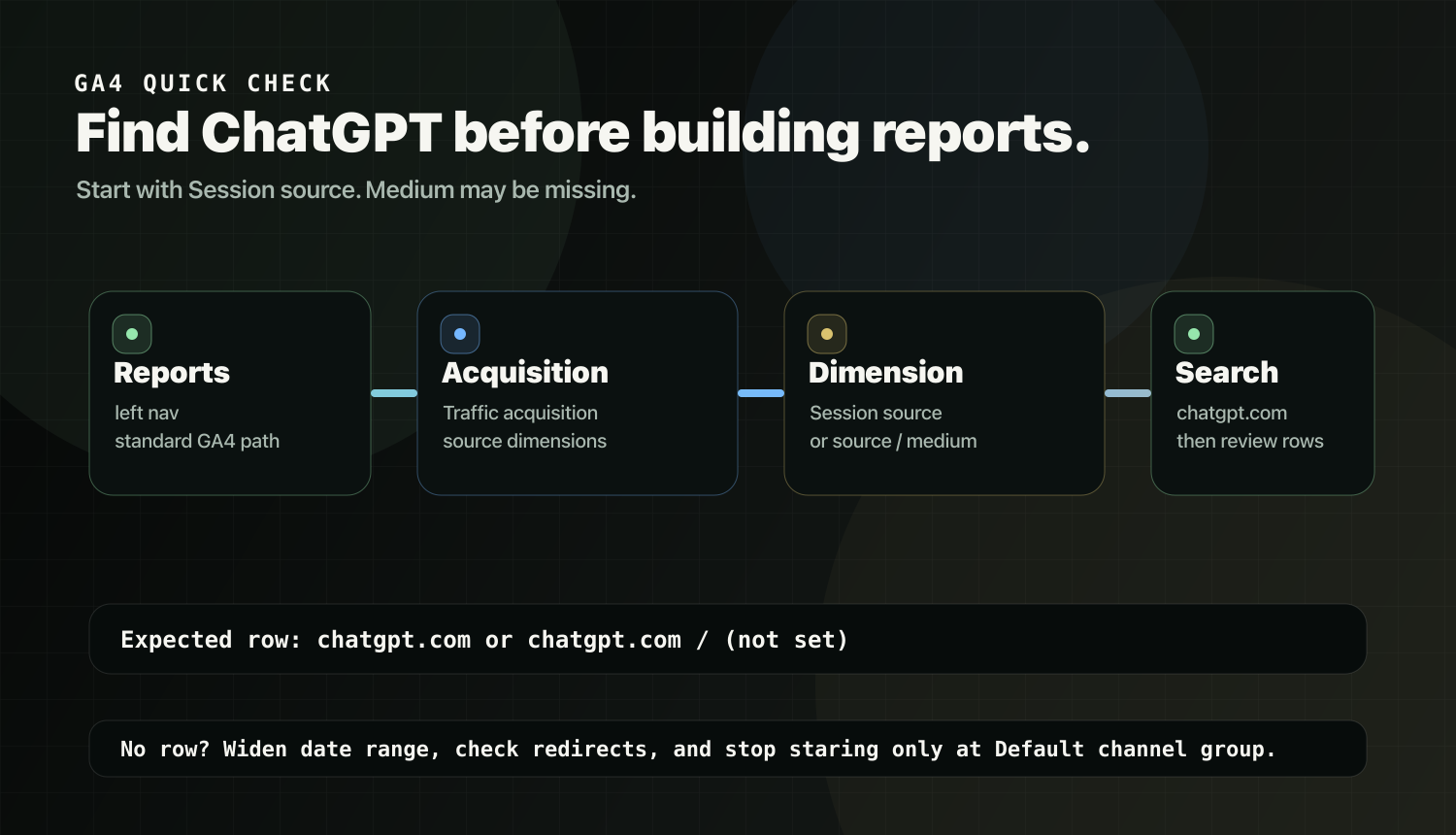
Do this first before you build anything.
- In GA4, go to Reports -> Acquisition -> Traffic acquisition.
- Change the primary dimension to Session source or Session source / medium.
- Use the search bar above the table.
- Search for
chatgpt.com.
Google's Traffic acquisition documentation defines Session source and Session source / medium as standard traffic-acquisition dimensions, and Google says custom-campaign values can appear in the Traffic acquisition report.
What you might see:
chatgpt.comchatgpt.com / (not set)chatgpt.com / referral- sessions inside Unassigned until you switch the table dimension to Session source.
If you see nothing:
- widen the date range,
- verify you have actually received clicks from ChatGPT,
- check redirects that may strip query parameters,
- and confirm you are not only looking at default channel group rows.
Step 2: Use the right dimensions
GA4 has cross-channel dimensions, such as Session source / medium, and manual-tagging dimensions, such as Session manual source.
Google's manual tagging documentation maps utm_source to:
- Manual source,
- First user manual source,
- Session manual source.
Best practice for ChatGPT tracking:
- Use Session source to find it fast in the built-in Traffic acquisition report.
- Use Session manual source in custom reports or explorations when you want a cleaner UTM-specific view.
- Do not depend on Medium when filtering ChatGPT traffic, because
utm_mediummay be missing.
The practical rule:
Filter by source, not medium.
Step 3: Create a saved ChatGPT Referrals report
GA4 supports creating custom detail reports from the Library.
Create the report:
- Go to Reports -> Library.
- Click Create new report -> Create detail report.
- Choose Blank.
- Name it ChatGPT Referrals (GA4).
Recommended dimensions:
- Session source,
- Session medium,
- Session source / medium,
- Session manual source,
- Session campaign,
- Landing page + query string,
- Page location.
Recommended metrics:
- Sessions,
- Users,
- Engaged sessions,
- Engagement rate,
- Key events or conversions,
- Key event rate.
Add a report filter:
Session source exactly matches chatgpt.com
This avoids relying on medium or campaign fields that may be missing.
To make it usable for your team, add the report to a collection in Library and publish that collection to the left navigation.
Step 4: Fix Unassigned with a Custom channel group
If you want ChatGPT traffic to appear as a clean channel instead of hiding under Unassigned or referral noise, use a Custom channel group.
Create a channel group:
- Go to Admin -> Data display -> Channel groups.
- Copy the default channel group.
- Name the group AI Assistants (Custom) or ChatGPT (Custom).
- Add a new channel called ChatGPT.
- Set the channel rule.
Safe default rule:
Source exactly matches chatgpt.com
Optional expanded rule:
Source matches regex: (chatgpt\.com|chat\.openai\.com)
Put the ChatGPT channel above broad Referral rules.
Do not require Medium, because Medium may be (not set) when UTMs are incomplete.
Step 5: Track what matters for service businesses
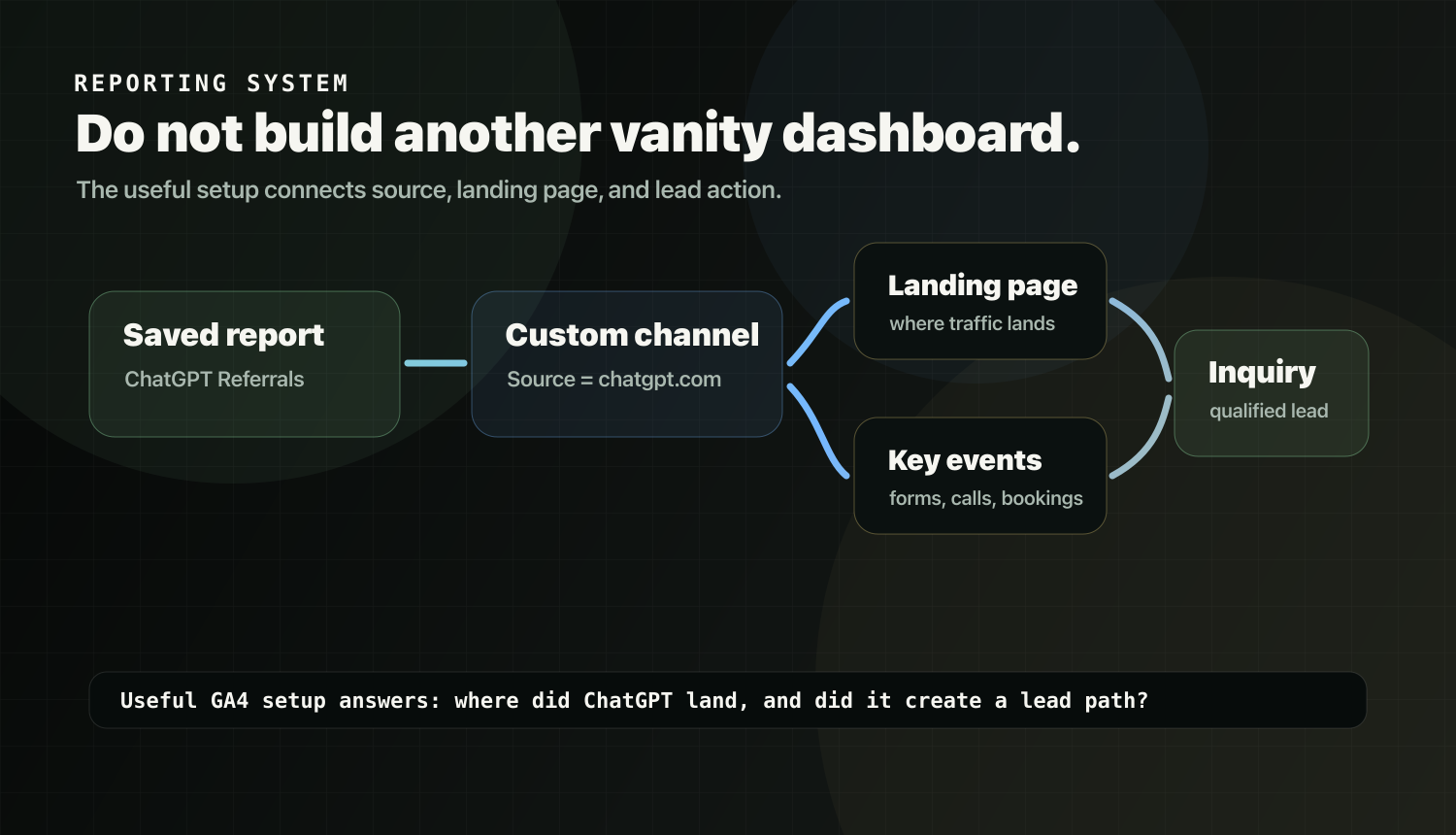
ChatGPT traffic volume is usually not the real story.
For service businesses, the useful questions are:
- Which pages does ChatGPT send users to?
- Do those pages route to the service page that owns the intent?
- Do those sessions produce qualified lead actions?
Minimum metrics to watch:
- Sessions,
- Engagement rate,
- Engaged sessions,
- Key events or conversions,
- Landing page performance,
- conversion paths into contact or booking.
Routing reminder:
If ChatGPT clicks land on an Insight post, add one clear route:
Insight -> Service page -> Proof -> Inquiry
If your site gets traffic but does not convert:
Why Your Website Gets Traffic But No Leads: https://seoinformatica.com/why-your-website-gets-traffic-but-no-leads/
Troubleshooting ChatGPT traffic in GA4
Medium is (not set) or sessions show as Unassigned
This can happen when UTMs are incomplete.
Google recommends using utm_source, utm_medium, and utm_campaign together. Google also says missing UTM parameters can lead to (not set) values in reporting.
You cannot force ChatGPT to add more UTMs.
So solve reporting visibility by:
- filtering by Source,
- using Session manual source where useful,
- and creating a custom channel group that only needs Source.
I only see (direct) / (none)
Google defines (direct) / (none) as traffic where Analytics cannot identify a clear source or medium.
This can happen when:
- UTMs are missing or stripped by redirects,
- users copy and paste URLs,
- certain app or browser flows suppress referral data,
- an intermediate hop drops the query string.
If you suspect redirects are stripping query parameters, check that every redirect preserves:
?utm_source=chatgpt.com
I cannot see UTMs on Landing page reports
This one catches teams constantly.
Google says UTM parameters are omitted from:
- Landing page + query string,
- Page path + query string.
For debugging UTM parameters, use:
- Page location.
Next step: turn tracking into a visibility system
Tracking is only useful if it informs action:
- identify where ChatGPT traffic lands,
- strengthen those landing pages for clarity and decision support,
- and route into the service page that owns the intent.
If you want this applied as a system:
Search + AI Visibility: https://seoinformatica.com/search-ai-visibility/
Start with a Free Clarity Call: https://seoinformatica.com/start/
If you want to ensure crawl access and readiness first:
ChatGPT Search Readiness: https://seoinformatica.com/chatgpt-search-readiness/
Official references
- OpenAI: Publishers and Developers FAQ: https://help.openai.com/en/articles/12627856-publishers-and-developers-faq
- Google Analytics: Traffic-source dimensions, manual tagging, and auto-tagging: https://support.google.com/analytics/answer/11242870
- Google Analytics: URL builders and UTM parameters: https://support.google.com/analytics/answer/10917952
- Google Analytics: Custom channel groups: https://support.google.com/analytics/answer/13051316
- Google Analytics: Traffic acquisition report: https://support.google.com/analytics/answer/12923437
- Google Analytics: Create a detail report: https://support.google.com/analytics/answer/13844077
- Google Analytics: Customize report navigation: https://support.google.com/analytics/answer/10460557
- Google Analytics: Understand direct / none traffic: https://support.google.com/analytics/answer/15258820
- Google Analytics: What (not set) means: https://support.google.com/analytics/answer/13504892